Blogger hack etiketine sahip kayıtlar gösteriliyor. Tüm kayıtları göster

Create Compatible CSS for Firefox , IE6 , Opera , IE7 , etc

Learn How to create Compatible CSS for Various Browsers like Internet Explorer 6 , IE7 , IE8 , Opera , Firefox , etc..

Web-designers create blogger template for Hours using one particular browser say Firefox , They don't know that the CSS code they use is compatible only for the browser they are working at present. Especially in IE6 , there are many Compatible issues.

for Example : the sidebar may appear below main content wrapper or there would be more gap between each widget , content wrapper and sidebar may overlap ,etc.

So in this Post I will tell you How to create CSS code which is compatible for almost all browsers. For this you need to have two browsers Internet Explorer 6 and Firefox .


I have chose IE6 because it is one of the most common browsers which windows have.

Incompatibility issues in IE6 and Firefox

First let's check is our current Blogger template is compatible with all browsers or not.

For this visit this website : Browser Screen shots
Enter your Blog URL and check the images there to know How your blog looks in various Browsers.

step 2 : If you find any incompatibility issues then you need to modify your CSS code to suit browsers.

Let's us see an Example


Generally the css we use if of this form :

#example {
float : left;
width : 170px;
margin-left : 5px;
}


In this assume that this particular div is incompatible with Internet Explorer version x.

then we need to modify the above css code as

#example {
float : left;
width : 170px;
margin-left : 5px;
}
#example {
float : left;
width : 185px;
margin-left : 3px;
}

in this first css code is for all versions of Internet Explorer and the second css code is for other browsers like firefox , opera , dillo , sea monkey , etc

but it will be confusing for you to edit.. so now we are going to add different CSS rules to IE, we can use the child selector command which IE can't understand. The child selector command involves two elements, one of which is the child of the other. So, html>body refers to the child, body, contained within the parent, html.

After introducing Child selector command , the css code must look like this

#example {
float : left;
width : 170px;
margin-left : 5px;
}
html > body #example {
width : 185px;
margin-left : 3px;
}

in this the green colored code is for IE versions and the red Colored code is for other browsers.

So with simple child selector command we can make our css code compatible for all browsers. Every time when I create a New template , I use to check whether it is compatible with other browsers or not. And I use to change the CSS code to suit that browser.

If you are unable to modify the CSS code then please mail me your template and explain the problem , I will rectify those errors and mail you back.

Read More!

Page Navigation Menu Widget for Blogger

Page Navigation Menu Widget for Blogger

Read More!

CSS ile yazılarınızın seçimini süsleyin

CSS ile yazılarınızın seçimini süsleyin
Belki çok gerekli bir kod olmayacak ancak ben anlatmak istiyorum.Şuan blogumdada kullandığımı belirtmek istiyorum.Bir yazıyı seçinde arkaplan rengi değişiyor.Bu arada belirtiyorumki eklenti sadece Firefox ve IE'de çalışıyor.

BlogAndWeb'te rastladığım bu kodları sizlerle paylaşıyorum.

İlk olarak yine HTML Düzenle'ye gidelim.

Daha sonra ise şu kodları CSS kodları arasında bir yere yapıştırın.

/* Para Safari */
::selection {
background: #ccc;
}

/* Para Firefox */
::-moz-selection {
background: #ccc;

p.post-body:selection {
background: #ccc;
}

p.post-body:-moz-selection {
background: #ccc;
}
}

Bu kodları ekledikten sonra #ccc yazan kod yerine HTML renk kodlarından seçip yazın.Böylece istediğiniz olmuş olacak.

Blogger destekden ödünç alınmıştır. Read More!

How to change Blogger Template without deleting widgets ?

One of the Major Problem Blogger users have is whenever they try to change their templates , They will loss their widgets even if they take backup of their template. After Changing their template , they need to add widgets again manually. It's really annoying and time consuming process.


Is there any way to Backup our Widgets ?

yes . We can backup our widgets before changing our template.

How to backup Blogger Widgets ?


It's really simple guys , before changing template search your widgets code without putting check in expand widgets box.

Select the widget code as shown in the image below.


Now save the widget codes shown in between yellow box to notepad. Copy and Paste all your widget codes.

After doing this Upload your New Template . After uploading you will get a message like this


At This stage don't click Confirm & save tab. Rather search for the following code , Now paste the widget codes you have saved immediately above or below the code in yellow

After adding the widget codes save your template.
That's it ! Now you will have all widgets that you used in your previous blogger template.

How This works ?

Blogger will keep the widget content on their database with unique widget id.

I hope this hack will be very useful to you guys. Tell me your suggestions in our comment form , If you have any doubts ask there I will help you.

Read More!

Page Navigation Menu Widget for Blogger

Page Navigation Menu Widget for Blogger

Yesterday I wrote How to add Page Navigation Menu hack by editing your blogger template. Now today I would like to use a different method to add this Page Navigation Menu to our Blogger Blog. Most Bloggers will prefer this method to add Page navigation Menu , because this method is very easy than editing Blogger Template.

Let us see how to add this Page Navigation Menu Widget :

Page Navigation Menu Widget


step 1 : Login to your Blogger account and Navigate to Layout Section . Now click Add Page Element link there.


Step 2 : In that Page Element window , choose HTML / JAVASCRIPT .

Step 3 : Now add this Javascript in that window.


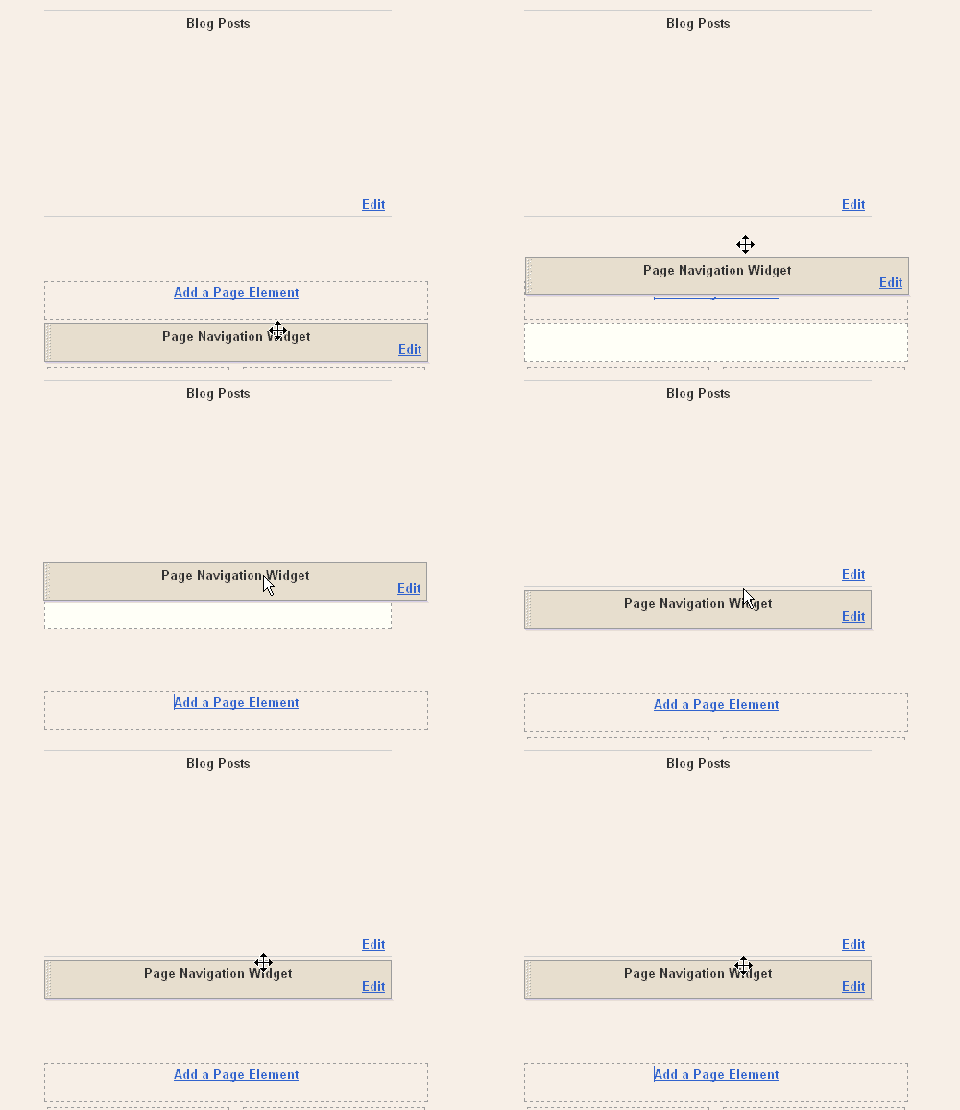
After Adding this Javascript you need to drag and drop the widget below the Blog Posts main widget. See this screen shot

Page Navigation Menu Widget


In the code above you can edit the lines in red to your wish .

1 : var pageCount = 2;

The digit in red represents number of posts to be shown in single page. Change the digit to show as many pages you want.

for example :

In my blog I have put that value as 2 . In each page you can see only 2 posts .


2 : var displayPageNum = 3;

here the digit in red represents number of pages to be listed.

For example :

In my blog I have chosen 3 , then 3 pages will be shown.

Now save your template .
That's it now we have added Page Navigation menu widget to our blog successfully .

I hope you guys will feel this method is easier than the last one.

See you soon with a special Lytebox hack .
Read More!